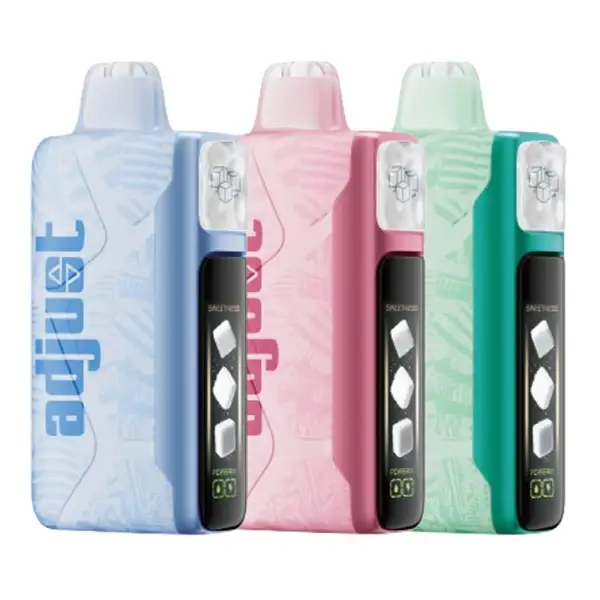
Every Orion Bar model charges via USB-C, but the battery sizes, charge times, and indicator systems differ between generations. This guide covers how to charge every Orion Bar device, what the blinking lights mean, and how to troubleshoot common problems like a device that won't hit or won't charge.
How to Charge Your Orion Bar — Step by Step
The process is the same for every model. You'll need a USB-C cable (not included with most Orion Bar devices — any standard USB-C cable works).
| Step | Action | What to Expect |
|---|---|---|
| 1 | Locate the USB-C port on the bottom of the device | It's next to the airflow/mode controls on most models |
| 2 | Connect the USB-C cable to a power source (wall adapter, laptop, or power bank) | Use a standard 5V adapter — do NOT use fast-charge bricks rated above 5V/2A |
| 3 | Plug the cable into the Orion Bar | The screen or LED will indicate charging has started |
| 4 | Wait for charging to complete | The light will turn solid green or the screen will show 100% |
| 5 | Unplug the device | You can vape while charging, but it may charge slower |
Charge Times by Model
| Model | Battery | Approx. Charge Time | Fast Charge? |
|---|---|---|---|
| Orion Bar 50K New Version ✅ | 1200 mAh | ~20 minutes | Yes (USB-C fast charge) |
| Orion Bar 50K Original | 920 mAh | ~60–90 minutes | No |
| Orion Bar 10000 | 650 mAh | ~45–60 minutes | No |
| Orion Bar 7500 | 650 mAh | ~45–60 minutes | No |
| Lightrise TB 18K | 700 mAh | ~50–70 minutes | No |
Pro tip: The 50K New Version's fast-charge capability is a significant upgrade — it can go from dead to full in about 20 minutes. The original 50K and older models take 3–4 times longer with the same cable.
What the Lights Mean — LED & Screen Indicators
Different Orion Bar models use different display systems. Here's what each indicator means:
50K New Version & 50K Original (360° Galaxy Screen)
| Indicator | Meaning | Action |
|---|---|---|
| Screen shows battery % + galaxy animation | Normal operation | None — vape normally |
| Screen shows low battery icon / red glow | Battery low (under 10%) | Plug in to charge |
| Screen shows charging animation while plugged in | Currently charging | Wait until 100% |
| Screen shows 100% / green glow while plugged in | Fully charged | Unplug the device |
| Screen flashes rapidly then goes dark | E-liquid depleted | Device is done — replace it |
| No screen activity at all | Dead battery or defective unit | Try charging for 15 min; if no response, contact retailer |
Orion Bar 10000 (LED Display)
| Indicator | Meaning |
|---|---|
| LED shows battery bars + juice level | Normal operation |
| Battery bars drop to 1 bar / blinking | Battery low — charge the device |
| LED pulses while plugged in | Charging in progress |
| LED goes solid / all bars lit while plugged in | Fully charged |
Orion Bar 7500 (No Screen)
| Light Behavior | Meaning |
|---|---|
| Solid light during draw | Normal — device is firing |
| Light blinks 3–5 times then stops | Battery low — charge immediately |
| Light blinks 10+ times rapidly | E-liquid depleted or device error |
| Light stays on while plugged in | Charging |
| Light turns off while plugged in | Fully charged |
| No light at all when drawing | Dead battery or depleted — try charging first |
Orion Bar Blinking — What It Means & How to Fix It
"Why is my Orion Bar blinking?" is one of the most common questions we get. Blinking almost always means one of three things:
Cause 1: Low Battery (Most Common)
Symptoms: Device blinks 3–5 times when you try to take a puff, then stops producing vapor.
Fix: Plug it in with a USB-C cable. Wait for the full charge cycle (20 min for New Version, 60–90 min for older models). The blinking should stop once the battery has enough charge to fire.
Cause 2: E-Liquid Depleted
Symptoms: Device blinks rapidly (10+ times) even after a full charge. You may also notice a burnt taste, reduced vapor, or a hollow flavor.
Fix: Unfortunately, this means the device is done. Orion Bars are non-refillable disposables — once the e-liquid runs out, the device should be disposed of responsibly and replaced. This is normal end-of-life behavior, not a defect.
Cause 3: Device Malfunction
Symptoms: Brand new device blinks immediately out of the box, or device was working fine and suddenly starts blinking erratically with plenty of juice remaining.
Fix: Try these steps in order:
- Make sure the device is turned on (check the on/off switch on the bottom — some users accidentally turn it off)
- Try a different USB-C cable and power source
- Let it charge for at least 15 minutes, then retry
- Check for liquid in the charging port — gently dry with a paper towel if present
- If none of the above works, the device is likely defective. Contact the retailer for a replacement. VapesOnlineShop processes warranty claims for devices that fail within the first 48 hours of use.
Usage Tips — Get the Most Out of Your Orion Bar
Extending Battery Life
The 50K New Version's 1200 mAh battery lasts significantly longer per charge than older models, but there are still ways to optimize it. Use Norm mode as your default — Boost mode draws roughly twice the power per puff, which means you'll recharge twice as often. Avoid leaving the device plugged in overnight; once it's full, unplug it. Lithium-ion batteries degrade faster when held at maximum charge for extended periods.
Maximizing Flavor Quality
Take smooth, steady draws of 2–3 seconds rather than hard, fast pulls. Long, aggressive hits can overheat the coil and produce a slightly burnt taste — especially toward the end of the device's lifespan. If you notice the flavor starting to dull or taste slightly sweet/cotton-like, the e-liquid is running low and the device is nearing end of life.
Storage
Keep your Orion Bar at room temperature. Extreme heat (like a car dashboard in summer) can thin the e-liquid and cause leaking. Extreme cold can temporarily reduce battery performance — if the device seems sluggish in cold weather, warm it in your hands for a minute before using.